West Chester University uses different connection procedures for a student's laptop, a game console and a visitor's phone. Knowing which procedure applies can save an extra setup step after arriving on campus.
The university's published network guidance directs students, faculty and staff to RamNet. Entertainment equipment, including smart TVs and gaming consoles, uses the campus guest network after registration through a system called ClearPass.
Start with the device
WCU lists PlayStation, Xbox and Nintendo consoles, Roku, Fire TV, Apple TV and smart televisions among the equipment covered by its wireless connection instructions. Computers, tablets and smartphones used with a WCU account do not need that registration. They can join encrypted RamNet using the university username and password.
ClearPass identifies registered equipment by its MAC address, the network identifier used for the device. It also provides controls for sharing equipment with other users. A television joining the network and a visitor creating a temporary account are separate procedures, even though both use the guest network.
Register from a device already online
The registration website is available only while connected to the WCU network, according to the university. Start with a laptop or mobile device that already has that connection, then follow WCU's linked ClearPass instructions.
After signing in, choose “Create Device,” supply a nickname, the equipment type and its MAC address, then submit the registration. Connect the registered equipment to the guest network afterward. WCU allows registration of up to 10 devices.
The MAC address guide points out a detail worth checking before entering the number: equipment can have separate wired and wireless addresses. Use the address for the connection you intend to make. For wireless registration, copying the Ethernet address can send you back through setup.
The registration instructions also explain how to edit sharing settings, disable a device or delete its registration. Those controls are useful when replacing a console or changing who can access shared equipment.
Check restrictions before bringing extra equipment
WCU's approved and restricted equipment lists distinguish devices permitted on the network from equipment that may not work. Google Home and Chromecast devices are listed as unsupported; Sonos speakers have limited functionality with macOS and AirPlay.
Personal routers, access points, network switches and cell signal boosters appear on the prohibited list. The same page says personal hotspots and phone tethering are prohibited on campus, including residence halls, because of wireless interference.
For portable internet use away from campus, The Wright Report's Chester County library hotspot guide explains a separate lending option. A library loan does not override WCU's campus restrictions.
Visitors use temporary accounts
WCU's current wireless connection article describes guest accounts that expire after 24 hours. Visitors select the campus guest network, open its guest registration page and complete the form. The registered email address serves as the username; the password arrives by text at the supplied phone number.
For setup problems, WCU's Help Desk page lists 610 436 3350 and a support ticket option. Filing a ticket requires a WCU login. More local technology guides are available through the Chester County coverage hub.
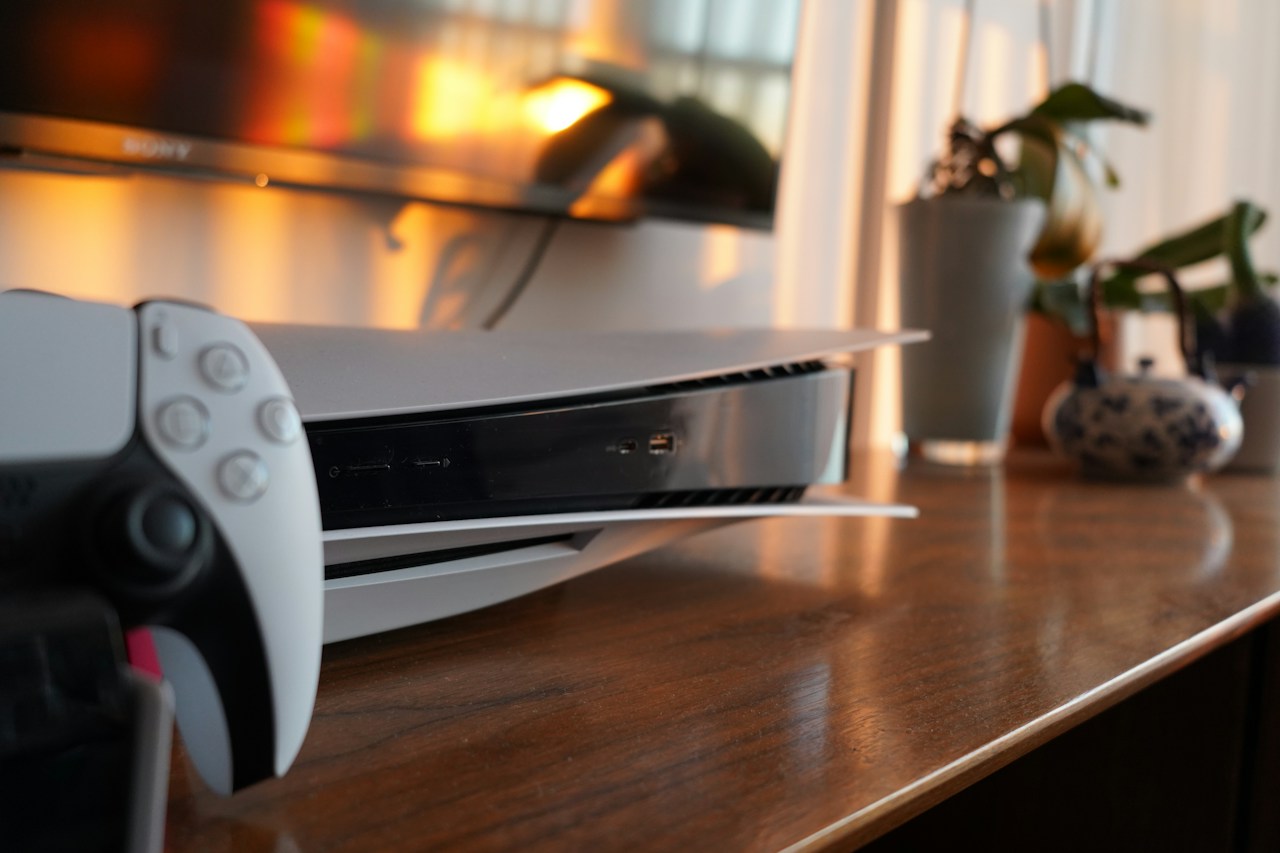
Photo: Shpëtim Ujkani on Unsplash, used under the Unsplash License. Illustrative stock photograph of a game console and controller, not WCU equipment or a campus room.
Related articles

Chester County
ChescoBus Pass in Chester County: tickets, smart cards and cash
ChescoBus riders can compare phone tickets, smart cards and cash, with practical checks for fares, offline use and a mismatch in iPhone requirements.
Chester County
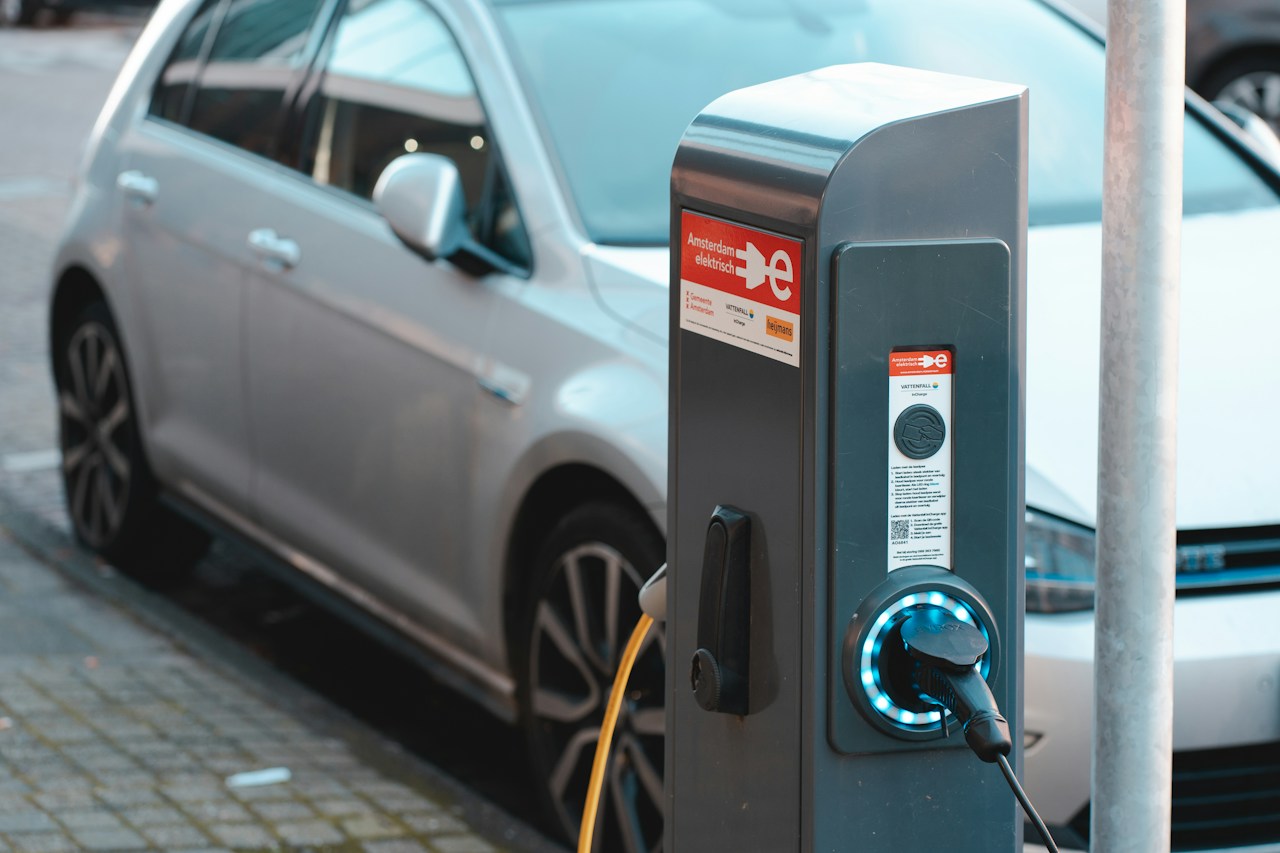
Chester County EV awards list 51 proposed charging ports
PennDOT lists 51 proposed EV charging ports in Chester County. Compare local awards, Level 2 and DC fast equipment, public access rules and network requirements.
Chester County
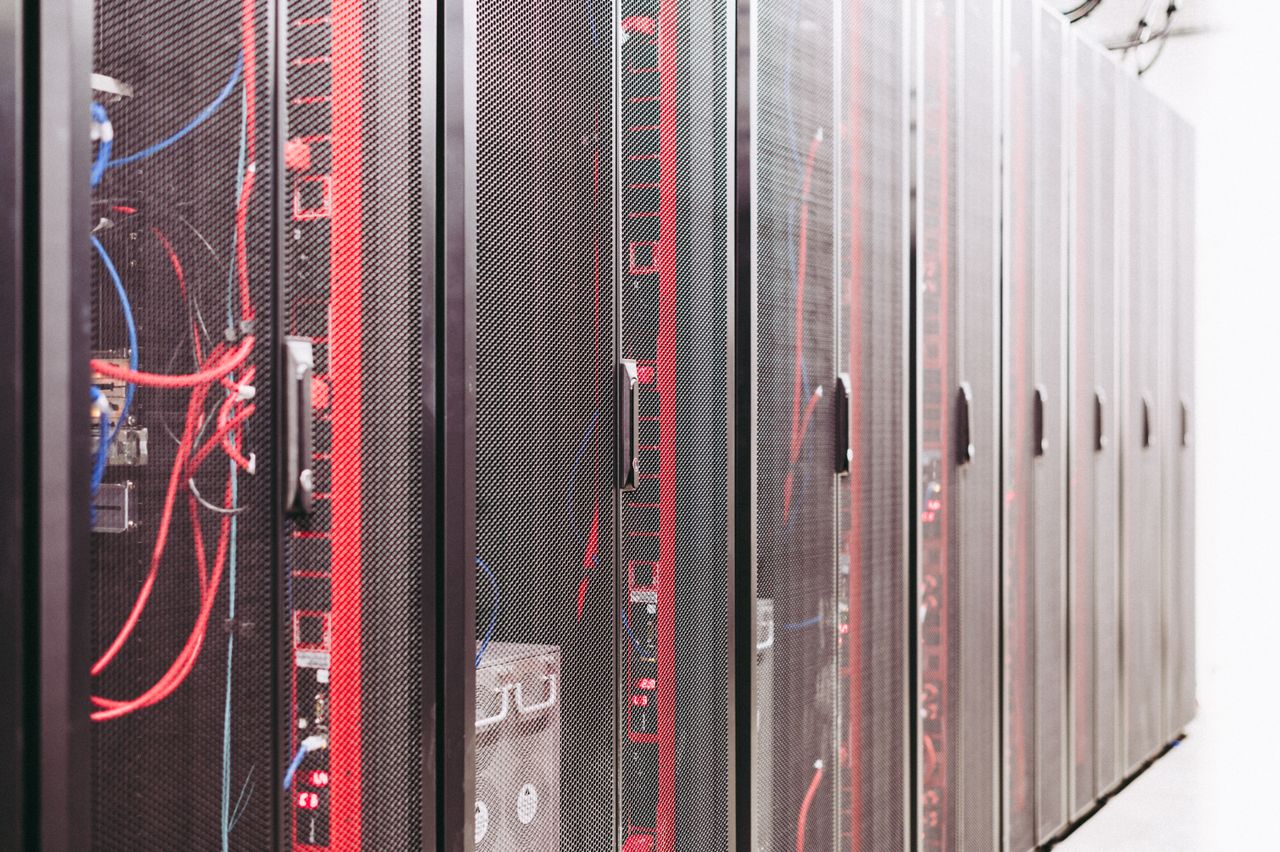
East Brandywine data center hearing set for November 12
East Brandywine’s November 12 hearing concerns data centers in a residential district. The applicant’s request and July ordinance address different approval paths.
Cameras and Imaging
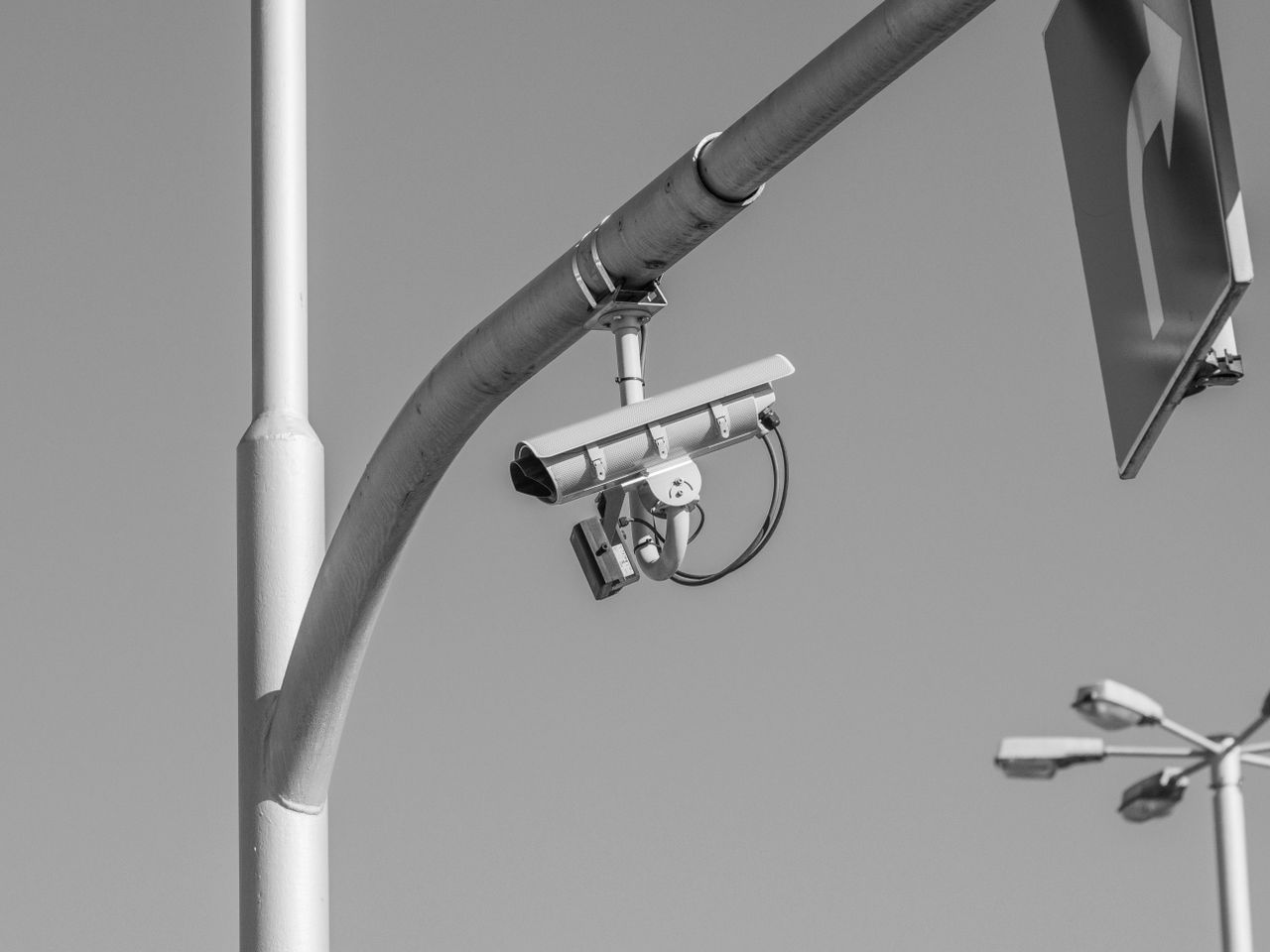
Chester County traffic cameras: How to use 511PA
Find Chester County cameras on 511PA, read location labels, open video and understand why views may change. Partner feed integration has separate requirements.